


Pencil Sketch Photo Editor
4.31.24K Reviews
App Specs
- Version
- 2.5.4
- Updated On
- License
- Free
- Downloads
- 10,000,000+
- Developer
- Maxlabs Photo Editor
- Categories
- Photography
- Platform
- Android, iOS
Screenshots
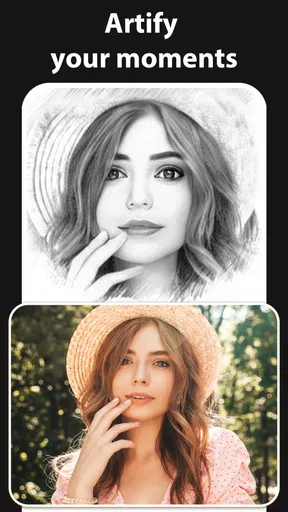
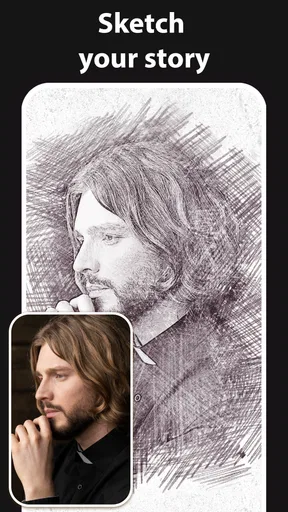
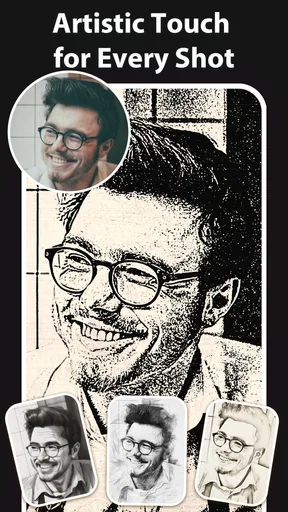
 Analysis by AppCompare
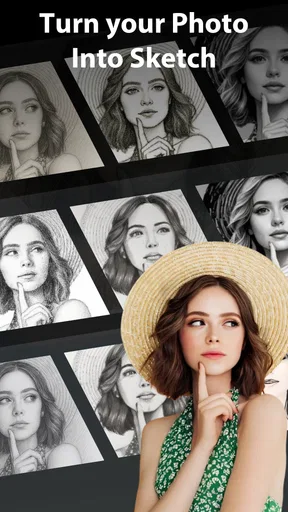
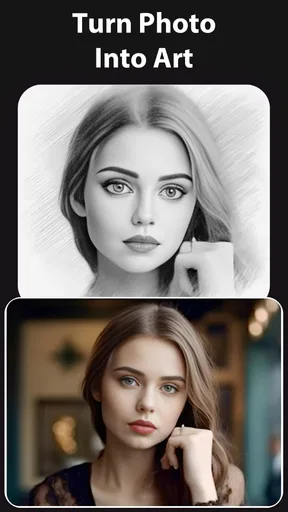
I like photo editors that have one clear job and let me get to it without turning a quick experiment into a project. Pencil Sketch Photo Editor is built around that simple idea: take a regular image and give it a drawn look. It suits casual edits better than a full design workflow, and its appeal is the immediate visual change rather than detailed retouching. If you want a fast way to make a portrait or familiar scene feel more illustrative, I can see the attraction. If you expect the control of a desktop drawing program, though, this is a much narrower tool.
That focus is also the app’s main trade-off. A sketch effect can make a photograph feel personal and handmade, but it does not automatically make every image more interesting. The result depends heavily on the source photo, and some pictures will translate much better than others. I would treat it as a playful photo treatment to test and refine, not as a substitute for drawing by hand or a complete photo-editing suite.
First Impressions
Once you open the Pencil Sketch Photo Editor, the first thing you notice is the sleek and user-friendly interface. It’s not cluttered with unnecessary menus, and everything feels intuitive. Whether you’re a newbie or a seasoned photo editor, navigating through the app is a breeze. The app opens up with a simple option: choose a photo from your gallery or snap a new one. Easy peasy!
That direct starting point is useful when I have a particular picture in mind rather than a whole album to edit. I can make a quick test with a camera image or pick an existing photo, then judge the sketch treatment against the subject itself. For a first try, I would choose a well-lit portrait or an object with a clear outline; busy backgrounds and dim lighting can compete with the lines that make a sketch readable. A quick crop before applying an effect can also help keep the main subject from getting lost in surrounding detail.
The app is a free photography editor from Maxlabs Photo Editor. Its average rating is 4.3 from around 63,000 ratings, and it has passed 10 million installs. That level of use suggests it has found an audience among people who want a simple creative effect, though popularity alone does not tell me whether a particular result will suit your photo. It is rated for Everyone, and the current version is 2.1.6.
Diving Into Features
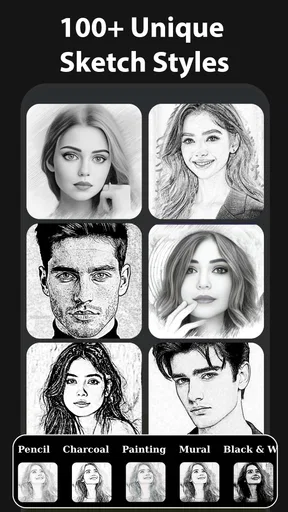
Now, let’s talk about what makes this app shine – the features. This app offers a variety of sketch styles that you can apply. From classic pencil sketches to more intricate charcoal effects, the options are plentiful. I personally loved the black and white sketch filter; it adds such a dramatic flair to photos.
The useful question is not simply which style looks most dramatic, but which one preserves the subject. For a close-up face, a lighter treatment may keep the eyes and expression recognizable; a heavier effect can make the image more graphic while obscuring small details. For a building, tree, or other subject with strong edges, a bolder look may be more forgiving. I would compare a couple of styles on the same image before settling, because a filter that looks striking on a sample portrait may flatten a different scene.
Worth Reading Before You Choose

EA SPORTS FC Mobile 26 Is a Bigger Football Game, but It Takes Time

Flipboard Shows What News Apps Must Do Beyond the Feed

Switching to Android Auto Means Rethinking Your Driving Routine

Google Calendar Makes a Crowded Week Easier to Manage

Ludo King Makes the Most of the Minutes Between Plans

Baby Panda World Brings Quick Play to Modern Phones, but Its Game Library Feels Busy
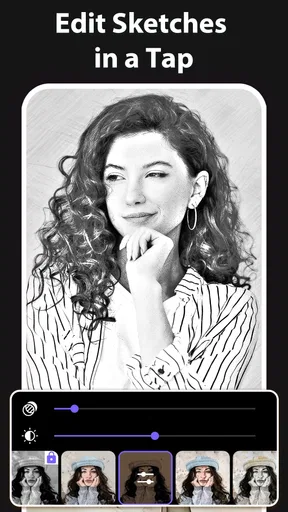
One of the standout features is the ability to adjust the intensity of the sketch effect. With a simple slider, you can make the sketch more pronounced or dial it back for a subtle touch. It’s perfect for those who want to customize their edits just the way they like.
That control is worth using in small steps rather than pushing straight to the strongest setting. I find a restrained effect can keep familiar textures and facial features intact, while maximum intensity can be useful when the goal is an unmistakably illustrated look. A practical workflow is to pick a style first, adjust intensity second, and then revisit the original photo before saving. This keeps the edit anchored to the image instead of letting a dramatic filter make the decision for you.
Performance and Usability
The app runs smoothly on both Android and iOS, with no noticeable lag or crashes during my testing. I was pleasantly surprised by how quickly it processed the images, even those with high resolution. The developers have done a fantastic job ensuring that the app performs well across different devices.
On Android, the stated minimum operating system is version 7.0, so it is worth checking your device’s software before installing. I would also make a habit of looking at the final image at a larger size before sharing it. A sketch can look clean in a small preview yet reveal harsh edges or lost detail when viewed more closely. That extra check matters most for portraits and pictures where a specific feature—such as an expression or a small object—is the reason you chose the photo.
A realistic use for the app is making a quick, personal image to send with a message. Imagine taking a clear photo of a friend’s pet during a visit, trying a pencil-style effect, and sharing the version that still looks recognizably like the animal. The process is simple enough for a spontaneous edit, but comparing the original and edited image first helps avoid sending a result that has turned the subject into an indistinct patch of lines.
Another sensible use is preparing a small batch of themed images for a personal post or a handmade-looking invitation. I would keep the source photos similar in lighting and composition, then use a consistent style and intensity across them. That approach can make separate pictures feel related without requiring elaborate editing. The trade-off is that a single sketch treatment may not suit every scene, so I would not force an image into the set if its subject becomes unclear.
Compared with a general-purpose photo editor, this app is appealing when you already know you want a sketch effect and do not need a long chain of adjustments. A broader editor is the better choice for detailed color correction, precise masking, layered design, or combining several elements. Compared with drawing directly on a tablet, this is faster and keeps the source photograph as the basis, but it offers less artistic control over individual lines. I see it as a focused shortcut, not a replacement for either kind of alternative.
For a cleaner result, I would start with a photo where the subject is separated from its background and avoid overly compressed copies when an original image is available. If the first filter looks too busy, lowering the intensity may help more than switching repeatedly between styles. If the outlines still merge together, choose a simpler source image instead; no slider can fully rescue a photograph whose subject and background have little visual separation.
A Few Things to Keep in Mind
While the app is free, there are some in-app purchases available. Some advanced filters and editing tools require a premium upgrade. However, the free version is more than capable of delivering high-quality sketches. Just be prepared for occasional ads, which can be a bit distracting but are a small price to pay for the app’s capabilities.
In-app purchases range from $2.99 to $39.99 per item, so I would try the free experience before spending anything. Whether an upgrade is worthwhile depends on how often you use the extra options and whether they improve the particular images you want to make. Someone who only wants the occasional sketch may have no reason to pay, while a frequent user should decide based on the available tools rather than assuming that a purchase is necessary for every useful result.
Also, while the app supports a range of image formats, it’s always best to use high-resolution photos for the best results. Lower-quality images might not capture the finer details as effectively.
There is a practical difference between high resolution and a good candidate for a sketch: more pixels do not guarantee a clear drawing effect. A sharp image with a strong subject is usually a safer starting point than a very detailed but cluttered frame. When the goal is a small social post, it can be sensible to test the effect on a copy or a less important image first, then decide whether the result is worth keeping. That gives you room to compare without treating the filter as an irreversible edit.
This is also where I would draw the line on who should skip it. If you need careful skin retouching, selective edits, precise typography, or a polished multi-layer composition, I would reach for a more capable editor. If you want every part of a picture to be drawn differently, a dedicated illustration tool is a better fit. Pencil Sketch Photo Editor makes most sense when a quick, recognizable sketch treatment is the point, not when you need full control over the image.
Final Thoughts
In a world where photo editing apps are a dime a dozen, Pencil Sketch Photo Editor manages to stand out with its unique offerings and ease of use. It’s perfect for anyone looking to add an artistic touch to their photos without needing any technical know-how. Whether you’re looking to spice up your social media feed or just explore your creative side, this app is definitely worth a shot.
My recommendation is strongest for beginners, casual creators, and anyone who wants to try a pencil or charcoal look without learning a complicated editing workflow. It is less compelling for people who want a full set of photo tools or expect a filter to produce a hand-drawn illustration with fine control. The best results come from choosing the right source image and treating intensity as a creative decision, not simply turning it all the way up.
So, if you’re ready to turn your photos into beautiful sketches, give Pencil Sketch Photo Editor a try. It might just become your go-to app for all things arty!
For me, the deciding factor is whether you enjoy experimenting with one clear visual idea. The app is free to start, and its focused approach makes it easy to test on a portrait, pet photo, or scene with strong shapes. I would install it for occasional sketch-style edits, keep expectations realistic about how much control a filter can offer, and move to a broader editor when the job calls for precision. That is a useful, specific niche—and a good reason to give it a try if that niche matches what you want.
Pros
- User-friendly interface for quick edits.
- Wide variety of sketch effects available.
- High-quality output without resolution loss.
- Fast processing even on older devices.
- Doesn't require an internet connection.
Cons
- Limited free features; most are premium.
- Occasional ads can interrupt workflow.
- Some effects look similar to others.
- No batch processing for multiple photos.
- Lacks direct social media sharing options.
FAQs for Pencil Sketch Photo Editor
What features does Pencil Sketch Photo Editor offer?
Pencil Sketch Photo Editor provides a variety of features to transform your photos into stunning sketches. It includes multiple sketch styles, such as pencil, color pencil, and cartoon effects. The app also offers tools for adjusting brightness, contrast, and textures. Users can easily share their creations on social media platforms directly from the app.
Is Pencil Sketch Photo Editor free to use?
Pencil Sketch Photo Editor is available as a free download with basic features. However, it offers in-app purchases to unlock premium features and remove ads. This allows users to access a broader range of effects and tools for a more enhanced editing experience. Pricing details can be found within the app.
Does Pencil Sketch Photo Editor require an internet connection?
While Pencil Sketch Photo Editor can be used offline for basic operations, some features may require an internet connection. This includes accessing updates, downloading additional content, or sharing images directly to social media platforms. Always check the app permissions for more details on connectivity requirements.
How user-friendly is Pencil Sketch Photo Editor for beginners?
Pencil Sketch Photo Editor is designed with a user-friendly interface that caters to both beginners and experienced users. It provides easy-to-follow tutorials and intuitive navigation, making it simple for anyone to create artistic sketches. The app's layout is straightforward, with tools and options clearly labeled for ease of use.
What devices are compatible with Pencil Sketch Photo Editor?
Pencil Sketch Photo Editor is compatible with both Android and iOS devices. It supports most smartphones and tablets running on recent operating systems. However, for optimal performance, it is recommended to use devices with updated software versions and sufficient processing power to handle graphic-intensive tasks.


